Migrating Your Project to Payload NextJS 2.0: A Step-by-Step Guide


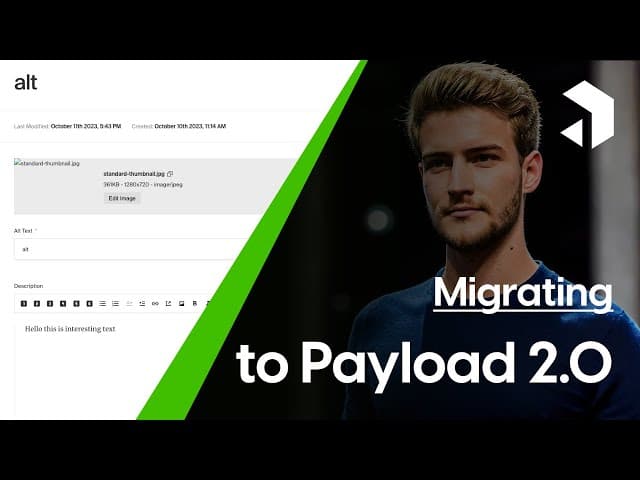

In this blog, we’ll explore the essential steps to migrate your Payload NextJS project from version 1.0 to 2.0. With this upgrade, you’ll unlock new features and improve your project’s functionality. Let’s dive into the specifics of this migration process, ensuring a smooth transition.
This article provides a detailed written guide for migrating your Payload CMS project to version 2.0. For visual learners or those who prefer following along with video instruction, check out our companion tutorial on YouTube at https://www.youtube.com/watch?v=AoFQup8zL_M. The video covers the same content but offers additional context and real-time demonstrations of each step in the process.
Table of Contents
- Introduction to Migration
- Understanding Breaking Changes
- Installing Payload 2.0.3
- Modular Codebase Explained
- Configuring Additional Packages
- Defining the Bundler and Editor
- Setting Up the Database with Mongoose
- Handling Connection Errors
- Exploring the New Interface
- Final Thoughts on Payload NextJS 2.0
- FAQs about Migrating to Payload NextJS 2.0
Introduction to Migration
Migrating your project to Payload NextJS 2.0 is an exciting opportunity to leverage the latest features and improvements. This process, while straightforward, requires attention to detail, especially regarding breaking changes. Understanding these nuances will help ensure a seamless transition and allow you to take full advantage of the new capabilities.
Why Migrate?
The shift from Payload NextJS 1.0 to 2.0 introduces a more modular architecture. This modularity allows developers to choose specific packages tailored to their needs, enhancing flexibility and performance. By migrating, you'll not only improve the functionality of your project but also future-proof it against upcoming updates.
Understanding Breaking Changes
One of the most critical aspects of migrating to Payload NextJS 2.0 is understanding the breaking changes. These changes can impact your existing codebase and require adjustments to ensure compatibility.
Key Breaking Changes
- Modular Codebase: The new version separates various functionalities, which means you'll need to explicitly install and configure the packages you intend to use.
- Database Adapter Changes: The transition to the Mongoose adapter requires specific configurations that differ from previous versions.
- Editor Configurations: The supported editors have changed, and you'll need to specify which one you are using in your configuration.
Familiarizing yourself with these changes will save you time and headaches during the migration process.
Installing Payload 2.0.3
To get started, you'll need to install the latest version of Payload. This step is crucial, as it sets the foundation for the migration.
Use the following command to install Payload 2.0.3:
npm i @payloadcms/payload@2.0.3
Once the installation is complete, you can begin updating your configuration files.

Modular Codebase Explained
The modular approach of Payload NextJS 2.0 allows developers to choose specific features that suit their projects. This means that instead of a monolithic codebase, you can now import only what you need.
Benefits of Modularity
- Customizability: Tailor your project by selecting only the packages necessary for your application.
- Performance: By reducing the overall size of your application, you can enhance performance and loading times.
- Maintainability: Easier updates and modifications can be made as you’re working with smaller, focused components.
Understanding how to leverage this modularity will be key to maximizing the benefits of Payload NextJS 2.0.
Configuring Additional Packages
After installing Payload, the next step involves configuring additional packages. This includes importing necessary adapters and editors that align with your project requirements.
Start by copying the relevant import statements into your configuration file. Ensure you have the build config imported to avoid redundancy.

Essential Packages to Consider
- Mongoose Adapter: Essential for database connectivity.
- Slate Editor: Provides a rich editing experience for content management.
- Webpack Bundler: Streamlines the building process for your assets.
Installing these packages is straightforward. Just copy the provided installation commands into your terminal, and wait for them to finish.
Defining the Bundler and Editor
Once you have the necessary packages installed, configuring the bundler and editor is your next priority. This configuration will define how your project handles builds and content editing.
In your admin configuration, specify the bundler:
bundler: 'webpack'
Next, add the editor definition using the Slate editor:
editor: 'slate'
It’s crucial to note that if you have existing fields set up with the Slate editor, you cannot switch to the Lexical editor without encountering errors.
Finalizing Your Configuration
After defining the bundler and editor, you’ll also need to configure your database settings. The Mongoose adapter requires a resource URI, which you will specify in your configuration file.
db: { adapter: 'mongoose', uri: 'your-mongodb-uri' }
Make sure to double-check your MongoDB URI in the environment file to avoid connection issues.
Setting Up the Database with Mongoose
To effectively utilize Payload NextJS 2.0, setting up your database with Mongoose is essential. This allows your application to interact seamlessly with MongoDB, leveraging its powerful features.
Start by ensuring you have the Mongoose adapter installed. If you followed the previous steps, you should already have this in your configuration.
Next, define your database connection URI. This URI should point to your MongoDB instance and must be correctly formatted, or you’ll encounter connection errors.
db: { adapter: 'mongoose', uri: 'your-mongodb-uri' }
Make sure to replace 'your-mongodb-uri' with your actual MongoDB connection string. This is critical for your application’s functionality.
Testing the Connection
Once you've set up your Mongoose configuration, it's time to test the connection. Use the command:
npm run dev
This command runs your application in development mode. If the connection is successful, you should see a confirmation message in your terminal.
In case of issues, double-check your MongoDB URI and ensure your MongoDB service is running.
Handling Connection Errors
Connection errors can be frustrating, but they are often easy to resolve. Common issues include incorrect URIs, network problems, or misconfigured environment variables.
Common Connection Issues
- Incorrect URI: Verify that your MongoDB URI is accurate and properly formatted.
- Network Issues: Ensure that your application can reach the MongoDB server. Check firewall settings and network configurations.
- Environment Variables: Make sure your environment variables are correctly set. A common mistake is a typo in the variable name.
If you encounter an error, the terminal will typically provide a message indicating the issue. Use this information to troubleshoot effectively.
Exploring the New Interface
With Payload NextJS 2.0, the interface has undergone significant improvements. Let's take a moment to explore these changes and how they enhance your development experience.
One notable feature is the persistent visibility of the navigation bar. This makes it easier to access different sections of your admin panel without having to toggle views constantly.
Key Interface Changes
- Improved Navigation: The navigation bar is now always visible, streamlining access to various features.
- Enhanced Layout: The layout is more intuitive, making it easier to find and manage your content.
- Responsive Design: The new interface is optimized for different screen sizes, ensuring a smooth experience across devices.
These enhancements not only improve usability but also contribute to a more cohesive workflow when working on your projects.
Final Thoughts on Payload NextJS 2.0
As we wrap up this migration guide, it’s clear that Payload NextJS 2.0 brings a wealth of improvements that elevate the development experience. The modular architecture allows for a more tailored approach to building applications, while the new interface enhances usability.
By embracing these updates, you position yourself to leverage the full potential of Payload NextJS, making your applications more robust and easier to maintain.
FAQs about Migrating to Payload NextJS 2.0
What are the main benefits of migrating to Payload NextJS 2.0?
The migration to Payload NextJS 2.0 offers improved modularity, enhanced performance, and a more user-friendly interface. These changes make it easier to customize your project and improve overall functionality.
Are there any risks involved in migrating?
As with any migration, there are potential risks, particularly if you are unaware of the breaking changes. However, by following best practices and thoroughly testing your application, you can mitigate these risks effectively.
How can I ensure a smooth transition?
To ensure a smooth transition, familiarize yourself with the breaking changes, back up your project, and test thoroughly after migration. This proactive approach will help you identify and resolve issues quickly.





