Unlocking the Power of Payload NextJS: Mastering the Drawer Component


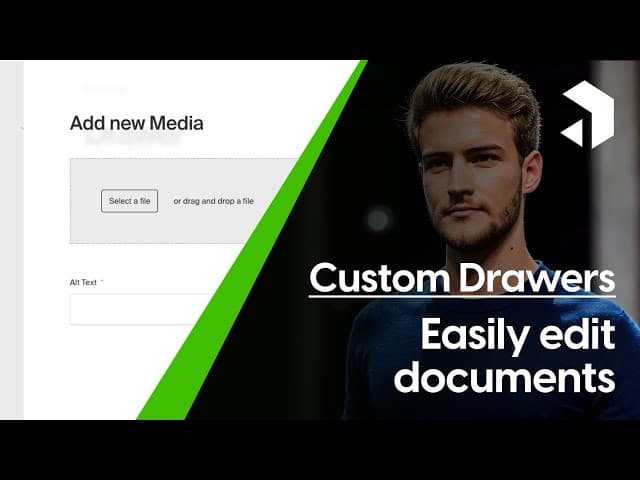

In today's blog, we're diving deep into the versatile Drawer component of Payload NextJS. This powerful tool allows for seamless document management right within your custom components, making it a game changer for developers looking to enhance their applications.
Table of Contents
- Introduction to the Drawer Component
- The Magic of the Document Drawer
- Creating New Instances with the Drawer
- Importing the Necessary Components
- Defining Unique Slugs for Your Drawers
- Displaying Content in the Drawer
- Styling the Drawer Toggle Button
- Creating a Document Drawer for Collections
- Editing Existing Instances with the Drawer
- Implementing Callbacks for Real-Time Updates
- Conclusion and Next Steps
- FAQ: Common Questions about Payload NextJS
Introduction to the Drawer Component
The Drawer component in Payload NextJS is one of the most powerful tools at your disposal. It provides a way to display content dynamically, allowing you to create a user-friendly interface that can manage various elements seamlessly. With the Drawer, you can present information, forms, or any custom components without disrupting the flow of your application.
It’s essential to understand how to set up and utilize the Drawer effectively to maximize its potential in your projects. Whether you’re working on a dashboard or a complex application, the Drawer can help enhance user experience by providing contextual actions and information.
The Magic of the Document Drawer
What truly sets the Document Drawer apart is its ability to interact with your collections defined in the Payload config. This feature allows you to create new instances of any collection from anywhere in your application. Imagine having a media collection where users can upload files and text directly from the interface. This functionality streamlines content management and enhances user engagement.
Moreover, if you specify an ID for the Drawer, you can also edit existing instances. This capability is particularly useful in scenarios where you need to manage a list of items, such as media or user profiles, directly from your dashboard.
Creating New Instances with the Drawer
Creating new instances with the Drawer is straightforward. You first need to set up your Drawer with the appropriate slug and collection. This process involves importing the necessary components and defining the collection you wish to interact with.
Once you have your Drawer set up, you can easily instantiate it in your component. This allows users to create new entries without navigating away from their current context, enhancing overall usability.
Importing the Necessary Components
To get started with the Drawer, you’ll first need to import the essential components. Begin by importing the Drawer and the Document Drawer from the appropriate path:
import { Drawer, DocumentDrawer } from 'payload/dist/admin/components/elements';Ensure you also include the Drawer toggler, which will allow users to open the Drawer. The import path remains consistent, and it’s crucial to follow the structure laid out in the Payload documentation.

Defining Unique Slugs for Your Drawers
Each Drawer requires a unique slug for identification. This is an important step to ensure that your application can differentiate between multiple Drawers. You can define a constant slug like this:
const drawerSlug = 'my-unique-drawer';
Feel free to customize the slug as long as it remains unique within your application. This practice helps avoid conflicts and maintains clarity when managing multiple Drawers.
Displaying Content in the Drawer
Once your Drawer is set up with the necessary imports and a unique slug, it’s time to display content. You can add headers, text, or any other components you wish to present within the Drawer. Here’s a simple example:
<Drawer slug={drawerSlug}>
    <h2>My Drawer Content</h2>
    <p>This is where you can add any content you want.</p>
</Drawer>
This approach allows you to create a user-friendly interface that can be tailored to your specific needs. Reload your application to see the Drawer in action, and make adjustments as necessary to fit your design.
Styling the Drawer Toggle Button
To create a visually appealing interface, styling the Drawer toggle button is essential. By default, the button may not match the Payload design aesthetic. We can easily integrate the Payload styles to enhance its appearance.
First, ensure you pass the appropriate class names to the button. For instance:
<DrawerToggle className="btn btn-secondary btn-small" />
This will ensure the button adopts the default Payload styles. Reload your application to see the changes take effect.

Creating a Document Drawer for Collections
Next, let’s focus on creating a Document Drawer that allows users to instantiate objects from a specific collection. This is particularly useful for collections like media or user profiles.
To set this up, you’ll need to import the Document Drawer and its toggler:
import { DocumentDrawer, DocumentDrawerToggler } from 'payload/dist/admin/components/elements';Define your unique slug for the Document Drawer. For example:
const drawerSlug = 'media-drawer';
Then, create the Document Drawer and specify the collection you want to manage:
<DocumentDrawer slug={drawerSlug} collection="media"></DocumentDrawer>
Finally, implement the toggler to open the Document Drawer:
<DocumentDrawerToggler slug={drawerSlug} className="btn btn-secondary btn-small" />
Now users can easily open the Document Drawer to create new media instances.
Editing Existing Instances with the Drawer
Editing existing instances is a powerful feature of the Document Drawer. To set this up, you need to specify the ID of the document you wish to edit.
First, copy the ID of the media item you want to edit. Then, modify your Document Drawer to include this ID:
<DocumentDrawer slug={drawerSlug} collection="media" id="your-media-id"></DocumentDrawer>
Now, when you open the Document Drawer, it will load the specific media instance for editing. Add a new button for editing:
<DocumentDrawerToggler slug={drawerSlug} className="btn btn-secondary btn-small" /> Edit Media
Once you save the changes, the updated information will reflect in your media collection.
Implementing Callbacks for Real-Time Updates
To enhance user experience, implementing callbacks for real-time updates is crucial. This feature allows your application to respond immediately to changes made within the Drawer.
In your Document Drawer, you can add an `onSave` callback:
<DocumentDrawer onSave={(newMedia) => console.log(newMedia)} />
This callback will log the updated media instance every time a save action occurs. It’s a handy way to ensure your application stays in sync with the latest data.
Consider implementing further logic, such as refreshing the list of media items after a save event:
const handleSave = (newMedia) => {
    console.log(newMedia);
    fetchMediaItems(); // Function to refresh the media list
};
This approach keeps your UI responsive and up-to-date.

Conclusion and Next Steps
In this blog, we explored the Drawer component of Payload NextJS, focusing on its versatility and functionality. From styling the toggle button to creating Document Drawers and implementing real-time updates, these features significantly enhance user experience.
As you implement these techniques, consider how you can further customize the Drawer to suit your application’s needs. Experiment with different collections and interactions to make the most of this powerful component.
For next steps, dive deeper into Payload NextJS documentation, and explore additional components that can complement the Drawer in your applications.
FAQ: Common Questions about Payload NextJS
- What is Payload NextJS?
Payload NextJS is a powerful framework that combines the flexibility of Payload CMS with the performance of Next.js, enabling developers to build dynamic applications with ease. - How does the Drawer component work?
The Drawer component allows developers to display content dynamically, including forms and custom components, without disrupting the user experience. - Can I edit existing records using the Drawer?
Yes, by specifying the ID of the document, you can edit existing records directly within the Drawer. - How do I style the Drawer toggle button?
To style the Drawer toggle button, pass in the appropriate class names from Payload's default styles when creating the button.





