Exploring Payload NextJS: Mastering Buttons and Icons in UI Components


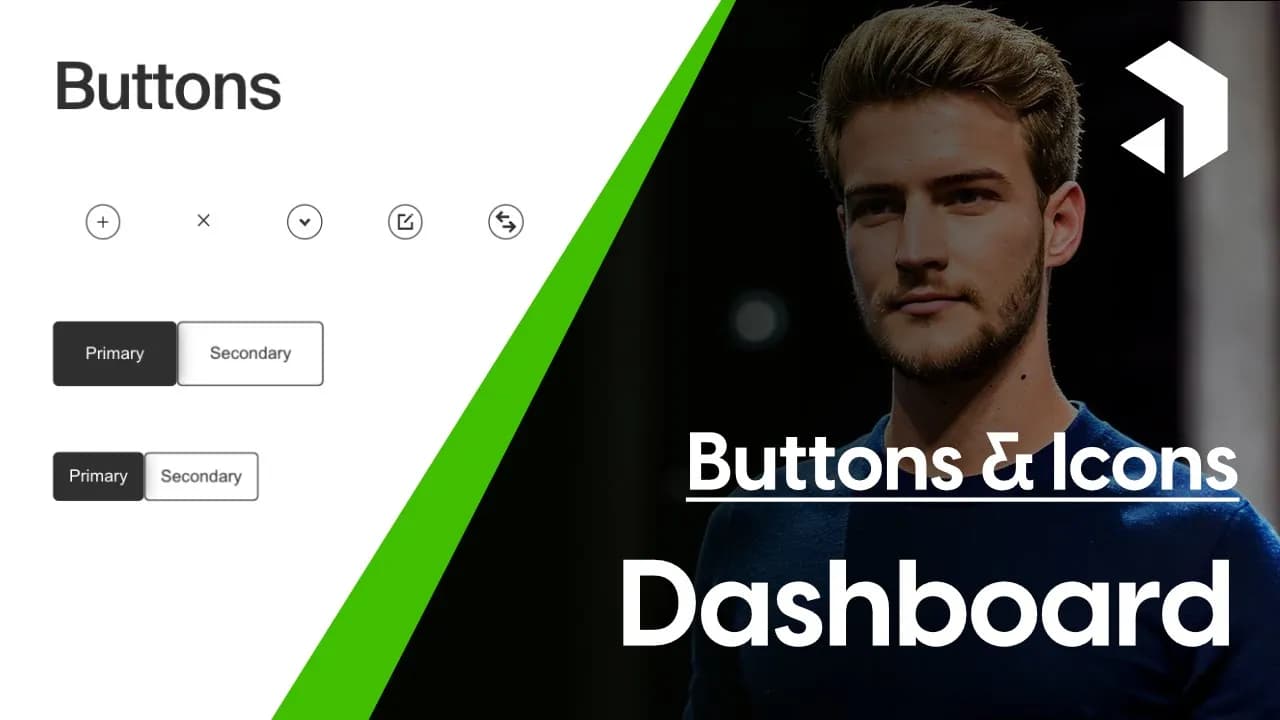

In this guide, we will delve into the world of Payload NextJS, focusing on the powerful button component that comes preloaded with various functionalities. From creating and linking buttons to styling and incorporating icons, this blog will provide you with all the insights you need to elevate your projects.
For visual learners, a complete video walkthrough of these concepts is available at:
https://www.youtube.com/watch?v=ZyfZ3HIwY94
Table of Contents
Introduction to Payload NextJS Buttons
Payload NextJS offers a robust button component that simplifies the process of creating interactive UI elements. With various functionalities and styles, these buttons can enhance user experience significantly. Whether you need simple buttons or those integrated with icons, Payload NextJS has you covered.
Importing the Button Component
To get started, you need to import the button component from the elements folder. This is straightforward and requires just a few lines of code. Here’s how you can do it:
import { Button } from 'path/to/elements';
Once imported, you’re ready to start creating buttons in your application.
Creating a Basic Button
Creating a button in Payload NextJS is easy. You can define the button's text and attach an onClick function for interactions. Here’s an example:
<Button onClick={() => console.log('Button clicked!')} text="Test Button" />
With this setup, you’ll see a button labeled "Test Button" on your page. When clicked, it will log a message to the console, confirming that it works as intended.

Linking Buttons to External Web Pages
Buttons can also serve as links to external web pages. To do this, you’ll need to set the button's base element to an anchor tag and provide a URL. Here’s how you can link to Google:
<Button baseElement="anchor" url="https://www.google.com" text="Go to Google" newTab={true} />
This code creates a button that, when clicked, opens Google in a new tab. It’s a simple yet effective way to navigate users to external resources.
Linking Within the App
Linking within your application is just as simple. Instead of an anchor tag, you’ll use the link tag to navigate to different components or pages in your app. Here’s an example of linking to a user collection:
<Button baseElement="link" to="/users" text="View Users" />
This button will direct users to the users collection page when clicked. It streamlines navigation within your app, making it user-friendly.

Styling Your Buttons
Styling is crucial for ensuring your buttons fit seamlessly into your design. Payload NextJS allows you to customize button styles easily. You can choose from primary, secondary, or transparent styles. Here’s how to apply different styles:
<Button buttonStyle="secondary" text="Secondary Button" />
Using the buttonStyle prop, you can switch between various styles to match your design requirements. For example, a transparent button can be created as follows:
<Button buttonStyle="transparent" text="Transparent Button" />
This flexibility ensures that you can create visually appealing buttons that stand out or blend in with your app’s aesthetic.

Exploring Icon Buttons
Icon buttons are a powerful feature in Payload NextJS. They enhance the user interface by integrating visual elements directly into the buttons, making them more engaging and informative. Using icons can convey actions in a more intuitive way, ensuring users understand what each button does at a glance.
To create an icon button, you’ll follow a similar approach to standard buttons, but with the addition of the icon parameter. This allows you to specify which icon to display alongside the button's text or even as a standalone element.
Using Icons Effectively
When incorporating icons into your buttons, consider the following best practices:
- Clarity: Choose icons that clearly represent the action they are associated with. A plus icon typically indicates adding something, while a trash can suggests deletion.
- Consistency: Maintain a consistent icon style throughout your application. This helps users quickly recognize actions and improves overall usability.
- Accessibility: Ensure that icons are accompanied by text where necessary. This aids users who may not be familiar with the iconography.
By following these guidelines, you can create a user-friendly interface that leverages the power of icon buttons effectively.
Common Button Styles in Payload NextJS
Payload NextJS provides various button styles to cater to different design needs:
- Primary: This is the default style, typically used for the main actions in your application.
- Secondary: A less prominent option, ideal for secondary actions that complement the primary button.
- Transparent: This style has no background, allowing for a more subtle integration into the UI.
- Icon: Specifically designed for buttons that feature icons, focusing on the visual aspect rather than text.
Here's how you can specify these styles in your code:
<Button buttonStyle="secondary" text="Add User" icon="plus" />
This example showcases a secondary button that adds a user, complete with a plus icon. Play around with different styles to find the best fit for your application’s design.
Conclusion and Next Steps
In conclusion, mastering buttons and icons in Payload NextJS is essential for creating a polished user interface. By understanding how to effectively utilize the button component, you can enhance user interactivity and improve navigation within your application.
As you continue to develop your skills, consider experimenting with different button styles and icon combinations to see what resonates best with your users. Always remember to keep usability and accessibility in mind.
Next, explore more advanced functionalities within Payload NextJS, such as integrating forms or creating dynamic components. The possibilities are endless!
FAQ
Can I use custom icons with Payload NextJS?
While Payload NextJS comes with a predefined set of icons, you can also use custom icons by importing them as components and passing them to the button.
What should I do if my icons are not displaying correctly?
Ensure that the icon names are spelled correctly and that they are included in your project. If using custom icons, check the import paths and make sure the icons are correctly defined.
Is it possible to animate button icons?
Yes, you can incorporate CSS animations to enhance the visual feedback of buttons. Consider using hover effects or transitions to create a more dynamic user experience.





