

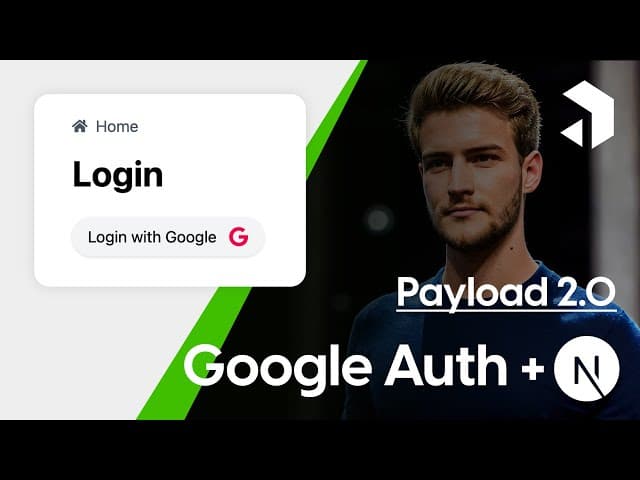

Welcome to our in-depth guide on integrating Google authentication with a Payload CMS backend and a Next.js frontend! In this article, we aim to provide you with a comprehensive understanding of the necessary steps and code snippets required to achieve a seamless authentication experience. This tutorial is based on a video by AllAboutPayload, where Joshua expertly guides viewers through the process. Whether you're a beginner or an experienced developer, this guide will help you implement Google authentication successfully.
For visual learners or those who prefer following along with video instruction, we’ve also created a video tutorial covering this exact process. It provides additional context and real-time demonstrations of each step. You can watch it here: https://www.youtube.com/watch?v=90UW7Qfyp-I
Table of Contents
- Table of Contents
- Introduction
- Backend Setup
- Frontend Implementation
- Creating an Auth Context
- Understanding OAuth2 Authorization
- Conclusion
- FAQ
Introduction
Google authentication is a popular method for securing applications, and when used with Payload CMS and Next.js, it allows for a streamlined user experience. In the previous tutorial, we focused on the backend setup for Google authentication with Payload. This time, we will build upon that foundation and explore how to connect it with a Next.js frontend. The steps are simple and primarily involve modifying some backend configurations and creating a React context for authentication.
Backend Setup
To begin, ensure you have completed the previous tutorial on setting up Google authentication with a Payload backend. If you haven't, you can find the link in the description below. The backend setup is crucial as it handles user authentication and manages sessions. Here are the key steps to follow:
- Navigate to your server.ts file in your backend project.
- Locate the callback function that handles Google OAuth redirection.
- Update the redirection URL to point to your Next.js frontend, which is typically
http://localhost:3000.
This change is essential because it allows your frontend to receive the authentication token (JWT) and any necessary cookies from the backend.

Once you've made these adjustments, your backend should now be capable of interacting with your frontend application, facilitating a smooth authentication process.
Frontend Implementation
Now that your backend is set up, let's shift our focus to the frontend. The frontend implementation is where users will interact with the authentication system. Here’s how to do it:
- In your Next.js application, create a new context for authentication.
- Set up a Login button that triggers the Google login process.
- Upon successful login, your application should display the user's profile information.
To get started, you can create a new file called AuthContext.js in your components folder. In this file, define your authentication context, including functions for logging in and logging out:
import React, { createContext, useContext, useState, useEffect } from 'react';

const AuthContext = createContext();

export const AuthProvider = ({ children }) => {
    const [user, setUser] = useState(null);

    const login = async () => {
        // Call your backend login endpoint
    };

    const logout = async () => {
        // Call your backend logout endpoint
    };

    useEffect(() => {
        // Check for existing user token and fetch user data
    }, []);

    return (

            {children}

    );
};

export const useAuth = () => {
    return useContext(AuthContext);
};
This context will manage user authentication state throughout your application, making it easy to access user data and authentication functions.
Creating an Auth Context
The authentication context plays a pivotal role in managing user state across your application. Here’s a breakdown of the components you must include:
- Login Function: This function will trigger the Google login process. You'll need to redirect users to the Google OAuth URL.
- Logout Function: This function will handle user logout by calling your backend logout endpoint and clearing the local storage.
- User State Management: Use the
useEffecthook to check if a user token exists in local storage. If it does, fetch the user data from your backend and set it in the context state.
Once you've implemented these functions, your AuthContext will be ready for use throughout your application.
Understanding OAuth2 Authorization
It’s crucial to understand how OAuth2 authorization works in the context of your application. When a user clicks the login button, they are directed to the Google OAuth2 authorization URL. Here’s what happens:
- The user is prompted to select their Google account.
- Upon selection, Google provides your application with a JWT token and any relevant user information.
- Your frontend must then handle this token, store it, and use it for subsequent requests to your backend.
In your AuthContext, you'll need to call the OAuth2 authorization URL from your frontend. This is a crucial step that ensures your application properly communicates with Google’s authentication services:
const login = async () => {
    window.location.href = 'http://localhost:4000/oauth2/authorize'; // Your OAuth2 endpoint
};
By following this approach, you ensure that users can easily log in with their Google accounts while your application securely manages user sessions.
Conclusion
Congratulations! You've now implemented Google authentication with a Payload backend and a Next.js frontend. By following the steps outlined in this guide, you can create a secure and user-friendly authentication experience for your applications. If you have any questions or suggestions for future tutorials, feel free to drop them in the comments below. Your feedback is always appreciated!
For further resources, be sure to check out the links provided in the description. And remember, the journey doesn’t stop here; in our next tutorial, we will explore how to implement Google authentication with Payload and Capacitor JS on iOS!
FAQ
1. What is Payload CMS?
Payload CMS is a headless content management system that allows developers to create and manage content easily. It provides a flexible backend while enabling developers to build custom frontends using various frameworks.
2. How does Google authentication work?
Google authentication uses OAuth2, allowing users to sign in to applications using their Google accounts. It simplifies the login process for users and enhances security for developers.
3. Can I customize the login button?
Yes, you can style the login button in your Next.js application using CSS or any styling framework of your choice. Just ensure that it triggers the login function when clicked.
4. What do I do if I encounter errors during implementation?
If you face issues, double-check your backend and frontend configurations, especially the callback URLs and API endpoints. Additionally, you can refer to the documentation for Payload and Next.js for troubleshooting tips.
Thank you for reading, and we hope to see you in our next tutorial! Happy coding!





