Customizing Your Payload NextJS Admin Panel: A Step-by-Step Guide


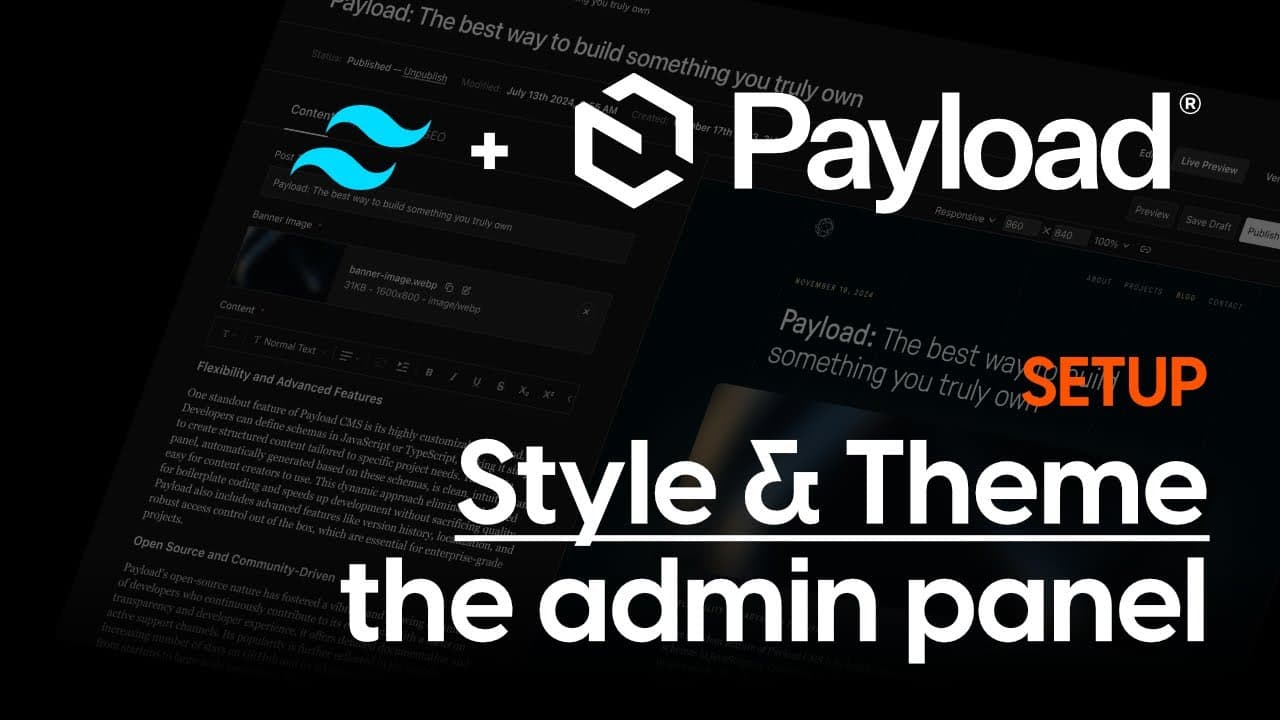

This is the written guide for our Payload 3.0 theming the admin panel tutorial series (Part 1). You can find the full length video here:
https://www.youtube.com/watch?v=n7AwZZVWYCA
In this tutorial, we'll explore how to theme your Payload NextJS admin panel with custom colors, styles, and logos. Whether you're a seasoned developer or just getting started, this guide will help you make your admin panel truly yours!
Table of Contents
- Introduction & Overview
- Setting Up a New Payload Project
- Installing & Configuring Tailwind CSS
- Creating Custom CSS Files for Payload
- Adding Custom Logos & Icons
- Theming & Styling the Admin Panel
- Adjusting Colors, Borders & Layout
- Troubleshooting Custom Components
- Exploring Further Customization Options
- What’s Next? Custom Components & Enhancements
- FAQ
Introduction & Overview
Customizing your Payload NextJS admin panel can significantly enhance your user experience. In this guide, we will cover the essential steps to create a new Payload project, configure Tailwind CSS, and customize the admin panel with your unique branding. You'll learn how to set up your development environment, add custom logos, and adjust the overall theme and styling.
Setting Up a New Payload Project
To get started with your Payload NextJS project, you'll first need to create a new project. Open your terminal and run the following command:
npx create-payload-app
You'll be prompted to name your project. For this guide, we will name it admin panel customization. Choose the blank project template and set up a local MongoDB database. Once the installation is complete, navigate into your project directory:
cd admin-panel-customization
Now, open your code editor. In this case, we will use Visual Studio Code:
code .
Next, start the development server by running:
npm run dev
Your development server will be running at localhost:3000. Open this in your browser, and you should see the welcome page for your new Payload project.

Installing & Configuring Tailwind CSS
To customize your admin panel, we will be using Tailwind CSS. First, we need to install the required dependencies. Stop the development server and run:
pnpm install
Next, create a PostCSS configuration file in your root folder:
touch postcss.config.js
Open this file and paste the configuration provided in the Tailwind CSS installation guide. Now, instead of importing Tailwind CSS directly, we will manage our styles more effectively by creating a dedicated styles directory.
Create a new folder called styles in your src directory, and within that folder, create two files: globals.css and payload-styles.css. The globals.css file will handle your front-end styles, while payload-styles.css will be specifically for the admin panel.
Creating Custom CSS Files for Payload
In your payload-styles.css file, you will import Tailwind's theme, base, and utilities layers separately. This allows you to comment out the base layer to avoid conflicts with Payload's default styles. Here's a sample of what your payload-styles.css might look like:
@import 'tailwindcss/base';
@import 'tailwindcss/theme';@import 'tailwindcss/utilities';
After setting this up, navigate to your app/payload layout file and import your custom styles:
import '@styles/payload-styles.css';
This setup ensures that Tailwind CSS works harmoniously with your Payload admin panel.
Adding Custom Logos & Icons
To personalize your admin panel, adding custom logos and icons is essential. First, create a folder named components and another folder inside it named payload. In this folder, create two React component files for your logo and icon.
In these components, you will conditionally render the appropriate logo based on the current theme (light or dark mode). Here’s an example of how you might structure your logo component:
const Logo = () => {
  return (
    <>


  );
};
Next, you will need to configure your Payload settings to use these custom components. In your payload.config.js, add the following under the admin property:
admin: {
  components: {
    graphics: {
      logo: 'components/payload/logo',
      icon: 'components/payload/icon',
    },
  },
},
Theming & Styling the Admin Panel
Now that you have your logos and icons in place, it's time to customize the overall appearance of your admin panel. The Payload admin panel uses specific CSS classes, which you can override. To see which classes are available, inspect elements in your browser's developer tools.
For example, you might find classes like button or dashboard label. To customize these, go back to your payload-styles.css file and add your desired styles. Here’s a simple example of changing the theme colors:
:root {
  --theme-color: #ff0000; /* Your desired color */
}
.card {
  background-color: var(--theme-color);
  border: 1px solid darken(var(--theme-color), 10%);
  border-radius: 4px;
}
These variables allow you to maintain a consistent style across your admin panel. After saving your changes, the updates should reflect immediately due to hot module reloading.

With these steps, you have the foundation to create a uniquely branded Payload NextJS admin panel. As you progress, consider experimenting with more advanced customizations to further enhance the user interface and experience.
Adjusting Colors, Borders & Layout
Customizing colors and borders in your Payload NextJS admin panel adds a personal touch that can enhance usability and aesthetics. The admin panel uses specific CSS classes that can be easily overridden. To get started, inspect elements using your browser's developer tools to identify the classes that control various elements.
For instance, you might encounter classes like button or card. To modify these, return to your payload-styles.css file and implement your desired changes. Below is an example of how to adjust the button styles:
.button {
  background-color: var(--theme-color);
  border: 1px solid var(--border-color);
  border-radius: 8px;
  padding: 10px 20px;
  color: #fff;
  transition: background-color 0.3s ease;
}
.button:hover {
  background-color: darken(var(--theme-color), 10%);
}
In this example, we’ve created a hover effect and ensured consistent padding and border radius. Adjusting these variables will yield immediate visual changes across the admin panel.
Troubleshooting Custom Components
When adding custom components to your Payload NextJS admin panel, you might encounter issues where changes do not reflect immediately. This is often due to Payload's import map optimization feature, which prevents unnecessary imports from being loaded.
If your custom logos or components aren’t displaying, the first step is to regenerate the import map. You can do this by running the following command in your terminal:
pnpm payload generate import map
This command will refresh the import map and ensure that your custom components are recognized and displayed properly. If issues persist, double-check your component paths and ensure they are correctly referenced in your payload.config.js file.
Exploring Further Customization Options
Now that you have a basic understanding of theming and styling your Payload NextJS admin panel, let’s dive into more advanced customization options. This includes creating your own unique layouts, custom components, and even integrating third-party libraries.
For layout customization, consider creating a new layout component that wraps your admin panel. This can allow you to define a consistent structure across different pages:
const CustomLayout = ({ children }) => {
  return (

Your Custom Header
{children}
Your Custom Footer

  );
};
Incorporate this layout in your payload.config.js to ensure it wraps around your admin panel content. This not only enhances visual consistency but also improves the user experience.

What’s Next? Custom Components & Enhancements
As you progress with customizing your Payload NextJS admin panel, consider implementing custom server components or client components to fetch and display data directly from your Payload backend. This allows for dynamic content rendering and a more interactive user experience.
To create a custom server component, define a new component that fetches data from your Payload API:
const CustomDataDisplay = async () => {
  const data = await fetch('/api/your-endpoint');
  const jsonData = await data.json();

  return (

{jsonData.map(item => (
{item.name}
))}

  );
};
By integrating such components, you can create a more engaging and functional admin panel tailored to your needs. In the next stages of development, explore how these components can interact with Payload’s powerful features.
FAQ
How do I change the default colors used in the admin panel?
You can change the default colors by modifying the CSS variables in your payload-styles.css file. Look for the :root selector where variables like --theme-color are defined and adjust them as needed.
What should I do if my custom components don’t show up?
If your custom components are not appearing, make sure to regenerate the import map using pnpm payload generate import map. Additionally, verify that the component paths in your payload.config.js are correct.
Can I use third-party libraries in my Payload NextJS admin panel?
Absolutely! You can integrate third-party libraries such as charting libraries or UI frameworks. Just ensure that you properly manage dependencies and styles to avoid conflicts with your existing setup.
Is there a way to preview changes without refreshing the page?
Yes! Utilizing hot module reloading in your development environment allows you to see changes in real-time without needing to refresh the page. This is particularly useful while styling and debugging your admin panel.





