

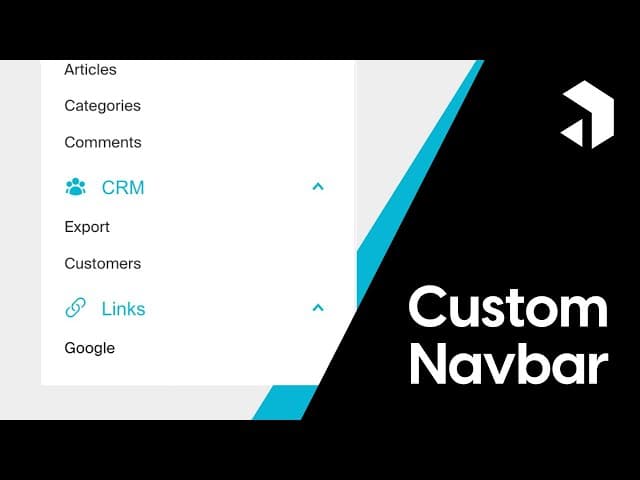

Hey everyone! Welcome to our Custom Navbar Guide! In this article, we’re diving into the exciting process of creating a custom navbar using Payload CMS and Tailwind CSS. Building on previous tutorials, I’ll show you how to enhance your navbar with custom styling, icons, and dynamic links, offering a tailored experience for your users. Expect comprehensive code walkthroughs and insightful tips to ensure your navbar looks great and functions seamlessly.
This article provides a detailed written step-by-step tutorial based on our comprehensive video guide available on YouTube at https://www.youtube.com/watch?v=F1ejRLr2Uzo. For visual learners or those who prefer following along with video instruction, the YouTube tutorial covers the same content while offering additional context and real-time demonstrations of each step in the process. The video complements this written guide, making complex concepts easier to grasp through visual examples.
Table of Contents
- Introduction to Custom Navbar in Payload
- Key Features of the Custom Navbar
- Starting with a Simple Payload Project
- Copying the Navbar Code from the Payload Repository
- Creating the Navbar Component
- Implementing the Navbar Structure
- Customizing Nav Groups
- Implementing a Link List in a Nav Group
- Customizing Nav Group Headers
- Injecting Links into Existing Nav Groups
- Conclusion
- FAQs
Introduction to Custom Navbar in Payload
Creating a custom navbar in Payload allows you to enhance the user interface and improve the overall user experience. The default navbar provided by Payload is functional, but by customizing it, you can integrate Tailwind CSS for styling, add icons, and inject your own links. This article will guide you through the entire process of building a custom navbar from scratch.
Key Features of the Custom Navbar
- Custom styling with Tailwind CSS
- Inclusion of icons for better visual representation
- Ability to inject custom links directly into nav groups
- Option to create entirely new nav groups
Starting with a Simple Payload Project
To begin, we need to set up a simple Payload project. This setup is based on previous Payload projects, and you can easily follow along with the tutorials provided by Sandor. In this project, we will implement Tailwind CSS for styling, which will be essential for our sidebar customization.
Here’s a brief overview of what we’ll include in our configuration:
- Block group
- Articles, categories, and comments
- CRM group with customers
- Media for the blog group
- Users for the admin group
- Custom views like export and overview
- A global config to save the link list

Copying the Navbar Code from the Payload Repository
Now that we’ve set up our project, we will copy the actual code for the navbar from the Payload repository. Here’s how to find it:
- Visit the Payload GitHub repository.
- Navigate to packages and then to payload.
- Find the source folder.
- Go to admin, then components, and finally elements.
In this directory, locate the nav component. Copy the index.tsx file and return to your project.
Creating the Navbar Component
In your project, create a new folder called components if you haven’t already. Within this, create another folder named nav and add a file called nav.jsx.
As a personal preference, I prefer using JavaScript over TypeScript, but you can choose either based on your comfort level. Remove any TypeScript references if you are using JavaScript.

Importing Necessary Dependencies
Next, we need to import the necessary components and functions from the Payload library. This will include the following:
- useConfig
- useAuth
- Chevron icon
- GroupNavItems function
Make sure to adjust your import statements as you go. You might encounter some import errors initially, so be prepared to troubleshoot them.
Implementing the Navbar Structure
Now that we have our imports set up, we can focus on implementing the structure of our navbar. This will involve creating nav groups and defining how they should behave when clicked.
Adding Hamburger Menu Functionality
To enhance the user experience, we’ll implement a hamburger menu that allows users to toggle the visibility of the navbar. Create a new file named hamburger.jsx in the same directory and implement the necessary code to manage the toggle functionality.
Customizing Nav Groups
Next, we will create a NavGroup component that will allow us to group related links together. This is particularly useful for organizing links that share a common theme or purpose.
Within the NavGroup, we can define a label and a list of links. The links can be dynamically injected based on the user’s preferences or the global configuration set in Payload.
Styling with Tailwind CSS
To ensure our navbar looks polished, we will utilize Tailwind CSS for styling. This includes adding classes to the nav group headers to make them more visually appealing and easier to read.
Implementing a Link List in a Nav Group
We will now create a link list in our global configuration that can be used within our nav groups. This allows for dynamic updates to the links without needing to modify the core navbar code.
To do this, we will set up a state in our navbar component to fetch the global config and access the link list.

Customizing Nav Group Headers
To improve the usability of our nav groups, we will customize the headers. This includes adjusting the font size, colors, and layout to make them stand out from the regular links.
For instance, we can use Tailwind CSS classes like text-xl and text-cyan-500 to enhance the visual hierarchy.
Injecting Links into Existing Nav Groups
Finally, we will explore how to inject links into existing nav groups. This is particularly useful for adding functionality like exporting data or navigating to specific views based on user roles.
We’ll create a dictionary that maps group names to their corresponding links, allowing us to easily manage and update the navigation structure.
Conclusion
In this guide, we explored the process of customizing the navbar in Payload using Tailwind CSS. By following the steps outlined, you can create a tailored experience for your users, complete with custom styling, icons, and dynamic links.
As you continue to develop your application, consider how the navbar can evolve to meet your users' needs. Don’t hesitate to experiment with different styles and functionalities to find what works best for your project.
If you found this tutorial valuable, hit that LIKE button and remember to SUBSCRIBE for more in-depth tech tutorials. Your feedback is incredibly important to us, so drop your questions or insights in the comments below!
FAQs
What is Payload CMS?
Payload CMS is a headless content management system that allows developers to build customizable websites and applications using modern technologies.
Can I use other CSS frameworks instead of Tailwind CSS?
Yes, you can use any CSS framework you prefer. Tailwind CSS offers utility-first styling, but frameworks like Bootstrap or Bulma can also be integrated.
How can I add more features to my navbar?
You can extend the navbar functionality by adding more nav groups, integrating third-party APIs, or implementing user role-based navigation.
Where can I find the code snippets used in this tutorial?
You can access the code snippets from the Notion link provided.
Stay tuned for our upcoming videos, where we’ll continue to explore the latest in tech and development!





