

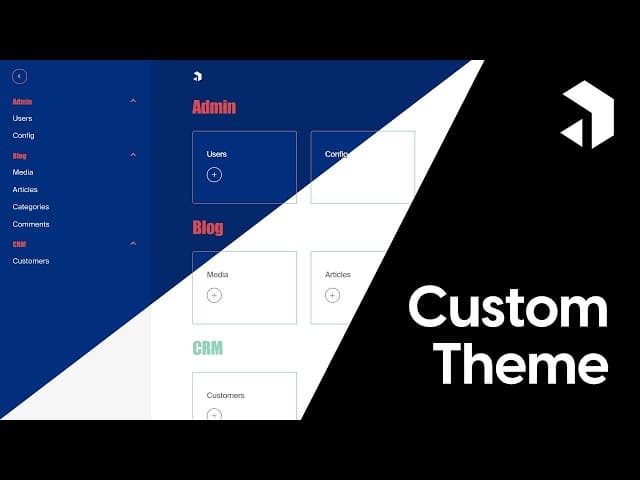

Welcome to our in-depth guide on how to create a custom theme using PayloadCMS! I'm Joshua, and in this article, we'll explore the process of enhancing your Payload project through tailored styling and dynamic elements. Whether you're a seasoned developer or just getting started, this guide will provide you with valuable insights and tips that will help you create a unique user experience. Let's dive in!
This article provides a comprehensive written step-by-step tutorial based on our video guide available on YouTube at https://www.youtube.com/watch?v=RY0NdKEUb6M. For visual learners or those who prefer following along with video instruction, the companion video covers the same content while offering additional context and real-time demonstrations of each step in the process. Whether you prefer reading or watching, both resources will help you create a stunning custom PayloadCMS theme.
Table of Contents
- What is PayloadCMS?
- Why Customize Your Payload Theme?
- Setting Up Your Payload Project
- Introducing the Theme Generator Tool
- Styling Individual Elements
- Utilizing CSS Variables
- Generating and Applying Your Custom CSS
- Conclusion
- FAQs
What is PayloadCMS?
PayloadCMS is a powerful headless content management system that allows developers to build custom applications with ease. Its flexibility and robust features make it an excellent choice for projects that require a tailored approach to content management. With PayloadCMS, you can create dynamic and responsive applications that meet your specific needs.
Why Customize Your Payload Theme?
Customizing your Payload theme is essential for several reasons:
- Brand Identity: A unique theme enhances your brand's identity and makes your application stand out.
- User Experience: Tailored designs improve user experience, making navigation intuitive and enjoyable.
- Functionality: Custom themes allow you to showcase relevant features and information effectively.
In this guide, we'll walk through the steps to create a custom theme from scratch. By the end, you will have a fully functional and visually appealing PayloadCMS theme that resonates with your audience.
Setting Up Your Payload Project
Before we dive into theme customization, it's crucial to set up your Payload project. If you have already completed the tutorial on the custom navbar, you can continue from that base. This approach works with any Payload version or project.
Configuring Your PayloadCMS
To begin, navigate to your Payload configuration settings. Here, you can pass a custom CSS stylesheet. By default, this stylesheet is empty, resulting in a standard interface. Let's start by switching to light mode for a cleaner look.
While Payload documentation provides information on overriding color classes, it can be cumbersome. That's why I developed a theme generator to simplify the process of styling your Payload project.
Introducing the Theme Generator Tool
If you want to follow along, visit 10xmedia.de/theme. On the left side of the page, you will find various options, starting with a color scheme picker.

The theme generator allows you to select a base color, which will generate a CSS file you can easily copy and paste into your project. While it's not an exhaustive list of classes, it covers many essential elements.
Choosing a Base Color
Start by selecting a base color. This automatically sets the primary theme color. For a friendly look, I recommend using a soft blue. You can also adjust the success and warning colors as needed.
The theme generator also provides a preview feature, allowing you to see how your theme looks across different sections of your Payload backend. Additionally, you can add an accent color, which will be inverted in dark mode.
Understanding Dark and Light Themes
PayloadCMS internally manages dark and light themes, inverting your color scheme based on the selected mode. If you choose a dark theme, your accent color will also be inverted. For example, you might select a fuchsia color for the accent, which will look vibrant in both modes.
Styling Individual Elements
Once you've set your base colors, you can move on to styling individual elements. The first step is to customize the navigation bar. Navigate to the navigation settings and select the appropriate CSS variables.

For instance, you may want to change the navigation background color. By default, it's set to "theme elevation 100." You can adjust this to "theme elevation 150" for a slightly darker shade.
Customizing Button Styles
Buttons are another crucial element to style. If you prefer rounded buttons over square ones, you can adjust the border radius. Set the border radius to 50%, and voilà! You've got a round button.
Modifying Dashboard Elements
In addition to navigation and buttons, you can customize the dashboard elements. For example, you might want to change the font family for titles. You can do this by navigating to the dashboard settings and selecting a new font, such as Georgia or Impact.
Additionally, consider adding a border radius to dashboard cards for a softer appearance. This will enhance the overall aesthetic of your application.
Utilizing CSS Variables
As you style your elements, keep in mind that CSS variables are incredibly useful. They allow you to define colors and styles that can be reused throughout your theme. Here are some essential CSS variables you may want to set:
- Theme Background: This is the general background color of your application.
- Text Color: Changing the text color can make your application more visually appealing.
- Accent Color: Use this variable to highlight important features or elements.
Generating and Applying Your Custom CSS
After you've made all your customizations, it's time to generate your CSS. Once you're satisfied with your theme, navigate to the generated CSS panel, copy the CSS, and paste it into your stylesheet.

When you return to your application, your custom theme should be applied seamlessly. This process not only enhances the visual appeal of your application but also improves functionality and user experience.
Conclusion
Creating a custom PayloadCMS theme is a rewarding experience that allows you to bring your vision to life. By following the steps outlined in this guide, you can create a unique and engaging user interface tailored to your audience's needs. Don't forget to explore the theme generator tool to simplify the styling process.
As you experiment with your custom theme, I encourage you to provide feedback or suggestions. If you discover additional classes or features that would enhance the theme generator, please reach out!
FAQs
1. What is PayloadCMS?
PayloadCMS is a headless content management system designed for flexibility and ease of use, allowing developers to create custom applications with tailored user experiences.
2. How do I customize my Payload theme?
You can customize your Payload theme using the theme generator tool, where you can select colors, adjust styles, and generate custom CSS.
3. Can I use my custom theme in any Payload version?
Yes, the approach outlined in this guide works with any Payload version or project.
4. How can I provide feedback on the theme generator tool?
If you have suggestions or feedback, please leave a comment or send an email to the creator of the theme generator tool.
Thank you for reading this comprehensive guide on creating a custom PayloadCMS theme! If you found this article helpful, consider sharing it with others who might benefit from it. Stay tuned for more insightful content, and happy theming!





